

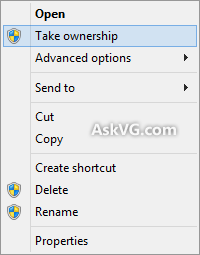
Now you can right-click on any file or folder and select "Take ownership" option. It'll make you the owner of the file or folder and you can perform your desired operation on that file or folder. An extra uninstallation registry script is also available in the ZIP file in case you want to remove the option from context menu. PS: If you want to know what kind of command does the context menu option "Take Ownership" execute when you click on it, here is some interesting information for you: We have assigned 2 commands to the context menu option, so whenever you click on "Take Ownership" option from context menu, it executes those 2 commands to take ownership of the file/folder and assign full control to you. Following are the 2 commands which are run by the context menu option:
To take ownership and grant full permission of a file: takeown /f filenameicacls filename /grant administrators:F
To take ownership and grant full permission of a folder: takeown /f foldername /r /d yicacls foldername /grant administrators:F /t
You can run the above mentioned commands in Command Prompt to manually take ownership and grant full control on any desired file or folder via command-line. Just replace filename and foldername terms in the commands with the actual file name and folder name.

 Tuesday, 12 May 2015 15:19
 1.67 KB
 2,273
